


Installing a wireless access point in a 4U rack case can significantly enhance the network capabilities of your business or organization. As a reputable 4U rack case supplier, I've had the opportunity to assist numerous clients in setting up their network infrastructure. In this blog post, I'll share a step-by-step guide on how to install a wireless access point in a 4U rack case, along with some tips and considerations to ensure a successful installation.
Step 1: Choose the Right Wireless Access Point
Before you begin the installation process, it's crucial to select a wireless access point that meets your specific requirements. Consider factors such as the number of users, the size of the area to be covered, and the type of network you want to support (e.g., Wi-Fi 6, 802.11ac). Look for access points that offer features like high-speed data transfer, multiple SSIDs, and advanced security options.
Step 2: Gather the Necessary Tools and Materials
To install the wireless access point in the 4U rack case, you'll need the following tools and materials:
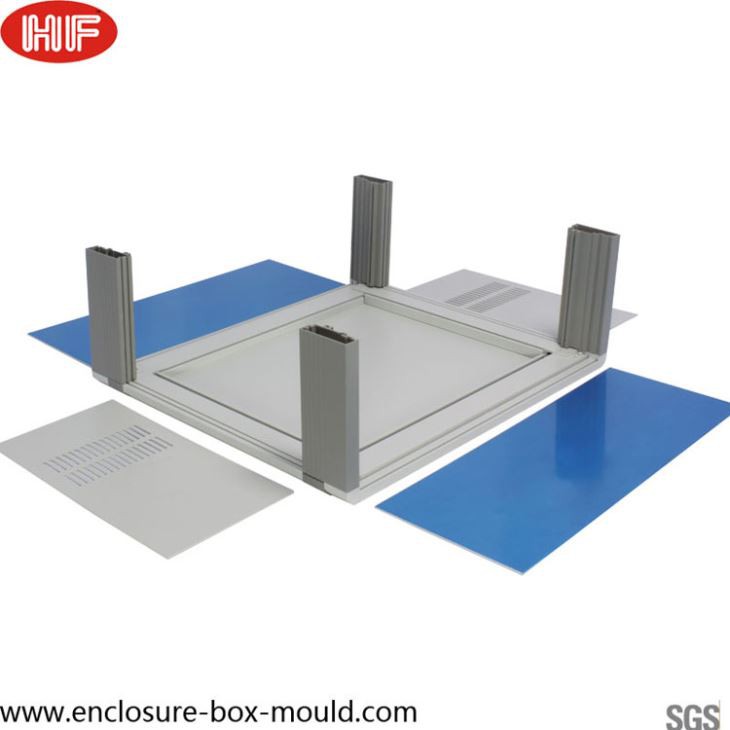

- 4U rack case: As a 4U rack case supplier, I can offer a variety of high-quality cases to suit your needs. Our cases are designed to provide excellent protection and organization for your network equipment. For example, you might be interested in our Aluminum Chassis Case Metal Power Box, which offers a durable and stylish solution for housing your access point.
- Wireless access point: Choose a model that is compatible with your network infrastructure and meets your performance requirements.
- Ethernet cables: You'll need to connect the access point to your network switch or router. Make sure to use high-quality cables to ensure reliable data transfer.
- Screwdriver: To secure the access point to the rack case.
- Power supply: Ensure that the access point has a compatible power supply. Some access points can be powered via Power over Ethernet (PoE), which simplifies the installation process.
Step 3: Prepare the 4U Rack Case
Before installing the wireless access point, you need to prepare the 4U rack case. Follow these steps:
- Choose the location: Decide where in the rack case you want to install the access point. Make sure there is enough space for ventilation and easy access to the ports.
- Mounting brackets: If the access point comes with mounting brackets, attach them to the rack case using the appropriate screws. Ensure that the brackets are securely fastened to prevent any movement.
- Cable management: Plan the cable routing in advance to keep the cables organized and prevent any interference. You can use cable ties or cable management trays to keep the cables tidy.
Step 4: Install the Wireless Access Point
Once the rack case is prepared, it's time to install the wireless access point. Follow these steps:
- Position the access point: Place the access point in the desired location on the mounting brackets. Align the holes in the access point with the holes in the brackets.
- Secure the access point: Use the screws provided to secure the access point to the mounting brackets. Make sure the access point is firmly attached to prevent any vibrations or movement.
- Connect the cables: Connect the Ethernet cable from the access point to your network switch or router. If the access point supports PoE, you can use a single Ethernet cable to provide both power and data. If not, connect the power supply to the access point.
Step 5: Configure the Wireless Access Point
After installing the access point, you need to configure it to work with your network. Follow these steps:
- Access the configuration interface: Connect your computer to the same network as the access point and open a web browser. Enter the IP address of the access point in the address bar to access the configuration interface. The default IP address and login credentials are usually provided in the user manual.
- Set up the network: Configure the access point to use your desired SSID (Wi-Fi network name) and password. You can also set up security options such as WPA2 or WPA3 to protect your network.
- Adjust the settings: Depending on your needs, you may need to adjust other settings such as the channel, transmit power, and quality of service (QoS). These settings can affect the performance and coverage of your wireless network.
Step 6: Test the Wireless Network
Once you've configured the access point, it's time to test the wireless network. Follow these steps:
- Connect a device: Use a smartphone, laptop, or other wireless device to connect to the Wi-Fi network. Enter the SSID and password you set up during the configuration process.
- Check the connection: Once connected, test the network speed and stability by browsing the web, streaming videos, or downloading files. Make sure the connection is reliable and fast.
- Troubleshoot any issues: If you encounter any problems, such as slow speeds or intermittent connections, refer to the user manual or contact the manufacturer's support team for assistance.
Tips and Considerations
- Ventilation: Make sure there is adequate ventilation around the access point to prevent overheating. You can use fans or ventilation holes in the rack case to improve airflow.
- Security: Implement strong security measures to protect your wireless network from unauthorized access. Use a strong password, enable encryption, and regularly update the access point's firmware.
- Positioning: The position of the access point can affect the coverage and performance of the wireless network. Place the access point in a central location to ensure maximum coverage.
- Scalability: If you plan to expand your network in the future, choose an access point that supports multiple SSIDs and can be easily integrated with other network devices.
Conclusion
Installing a wireless access point in a 4U rack case is a relatively straightforward process that can significantly enhance the network capabilities of your business or organization. By following the steps outlined in this blog post and considering the tips and considerations, you can ensure a successful installation. As a 4U rack case supplier, I'm committed to providing high-quality products and excellent customer service. If you have any questions or need assistance with your network installation, please don't hesitate to contact me for a purchase negotiation.
References
- Manufacturer's user manuals for the wireless access point and 4U rack case.
- Industry standards and best practices for wireless network installation and configuration.


